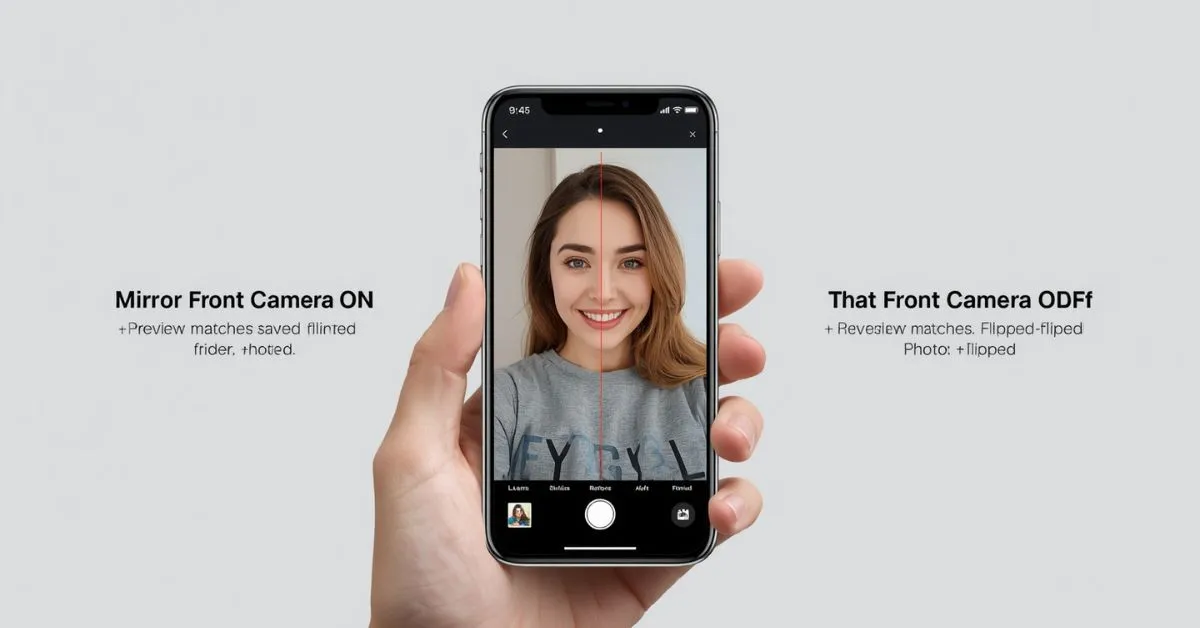
Mirror front camera means your phone saves a selfie the same way it appears in the front-camera preview, instead of flipping it after you take it. In simple terms, the photo keeps the mirror view you saw on screen. On iPhone and iPad, Apple uses the exact setting name Mirror Front Camera. On Google Pixel, the similar option is Save selfie as previewed.
If you have ever taken a selfie and noticed that it looked different after you saved it, this is the setting behind that change.
Many users search this phrase because they want a quick answer, but they also want to know whether the setting should be on or off, where to find it, and which option is better for selfies, profile pictures, Snapchat, Instagram, TikTok, WhatsApp, and photos with text or logos. This guide explains all of that in clear, simple language.
What does mirror front camera mean in simple words?
In simple words, mirror front camera means the phone keeps your selfie looking like the preview you saw before tapping the shutter. Without that setting, many phones show you a mirrored preview first and then save a non-mirrored version.
Apple describes Mirror Front Camera as taking a selfie “as you see it” in the front-facing camera frame rather than reversing it. Google Pixel explains the same idea by saying you can save selfies as mirrored or non-mirrored, and that Save selfie as previewed keeps the selfie from appearing reversed after you take it.
That means this setting does not improve image quality, camera resolution, portrait mode, lighting, beauty filters, or the selfie lens itself. It only changes the orientation of the saved image. The difference is left-to-right reversal, not camera quality.
What does mirror front camera mean on iPhone?
On Apple iPhone, Mirror Front Camera is the exact name of the setting. Apple says that if you want the selfie to capture the shot the way you see it in the front-facing camera frame, instead of reversing it, you should go to Settings > Camera > Mirror Front Camera and turn it on. Apple provides the same basic explanation for iPad as well.
How to find Mirror Front Camera on iPhone
If you want to change the setting on iPhone, the path is simple:
- Open Settings
- Tap Camera
- Turn Mirror Front Camera on or off
That is the exact iPhone settings path Apple gives for mirrored selfies.
What happens when it is turned on?
When Mirror Front Camera is on, the final selfie looks the same as your camera preview. If your hair part, earring, nose ring, mole, or pose looked a certain way on screen, the saved selfie keeps that same layout. Apple describes this as capturing the shot as you see it in the front-facing camera frame.
What happens when it is turned off?
When the setting is off, the selfie may be reversed before it is saved. That means the final photo can look different from the preview. This is why many people ask, “Why does my selfie flip after I take it?” The preview can feel like a mirror, but the saved image may not stay that way.
What does mirror front camera mean on Android?
On Android, the wording is not always the same. Different phone brands may use different labels, but the idea is usually similar.
On Google Pixel, the official wording is Save selfie as previewed. Google says you can save selfies as mirrored or non-mirrored photos, and that when you save a selfie as previewed, it will not appear reversed after you take it.
So if you use a Google Pixel, Android phone, or another selfie camera app, you may see labels like:
- Save selfie as previewed
- Mirror selfies
- Flip selfies
- Save mirrored photo
- Selfie mirror option
The names vary, but the goal is the same: choosing whether the front-facing camera saves the mirror view or the standard reversed version. Google’s Pixel support page confirms that this is a real mirrored-vs-non-mirrored selfie choice inside camera settings.
Mirror front camera on or off: which is better?
This is one of the most important parts of the topic because many users do not only want the definition. They want to know whether the setting should be on or off.
The truth is simple: neither option is always better. The best choice depends on what kind of selfie you are taking and what matters most in that photo.
Quick decision table
| Situation | Better Setting |
|---|---|
| You want the saved selfie to match the preview | Mirror Front Camera ON |
| You are taking a casual selfie for Instagram, TikTok, Snapchat, or WhatsApp | Usually ON |
| Your shirt, sign, label, or logo has text | Usually OFF |
| You want a more standard non-mirrored image | OFF |
| You care more about the exact screen preview than real-world orientation | ON |
| You are taking a photo for documents or a formal profile image | Usually OFF |
Apple and Google both explain these settings as choices between saving the selfie as previewed or allowing it to be reversed, which is why the best option depends on your goal.
Why does my selfie flip after I take it?
This happens because the camera preview and the saved image are not always handled the same way. Many phones show a mirror-like live preview because it feels natural while framing your face.
But once you press the shutter, the phone may save a non-mirrored image unless the mirror/selfie-preview setting is enabled. Apple’s help page explains this difference directly, and Pixel’s support page confirms the same mirrored/non-mirrored behavior.
That small change is why your:
- hair part can switch sides
- earrings may look swapped
- text on a hoodie may look backward or normal
- face can feel “different” from what you expected
The face itself has not changed. What changed is the image orientation.
Is mirror front camera how other people see you?
Not exactly. A mirrored selfie is usually closer to how you see yourself in a mirror. A non-mirrored selfie is usually closer to a standard photograph that other people see when they look at you in real life or in a regular camera photo.
This is why many people feel that the mirrored version looks more familiar, while the non-mirrored version can feel strange at first.
If you mainly want the selfie to match your screen preview, keep mirror front camera on. If you want a more standard photo orientation, turn it off. Apple and Google both frame this as a preview-vs-reversed saving choice.
Best times to turn Mirror Front Camera on
Mirror front camera is often the better choice when you want comfort, familiarity, and a selfie that matches what you saw while posing.
Turn it on when:
- you want the saved selfie to match the preview
- you are taking a casual selfie for social media
- you are checking makeup, hairstyle, beard shape, or pose in the preview
- you like your mirror view better
- there is no important text in the image
This works well for close-up selfies, profile updates, Instagram Stories, casual Snapchat photos, and selfies where composition matters more than text accuracy.
Best times to turn Mirror Front Camera off
Turning it off is often the better choice when orientation matters more than familiarity.
Turn it off when:
- your shirt has words on it
- there is a sign, label, or logo in the background
- you want a standard photo instead of a mirrored one
- you are taking a professional headshot or profile image
- you want details to appear in normal left-to-right order
This is usually the better option for LinkedIn photos, work profiles, marketplace profile pictures, school submissions, or any selfie where reversed text would look wrong.
Mirror front camera vs normal selfie
This comparison helps most readers understand the setting very quickly.
| Feature | Mirror Front Camera ON | Mirror Front Camera OFF |
|---|---|---|
| Saved image matches preview | Yes | No |
| Mirror-like selfie look | Yes | No |
| Text may appear backward | Yes | Less likely |
| Better for casual selfies | Yes | Sometimes |
| Better for logos and signs | No | Yes |
| Better for standard photo orientation | No | Yes |
Apple’s official iPhone and iPad guidance and Google Pixel’s selfie-saving instructions both support this mirrored-versus-non-mirrored difference.
Real examples that make the setting easy to understand
Example 1: Selfie for Instagram or TikTok
You pose for a selfie, fix your hair, raise one eyebrow, and like how everything looks in the preview. If you want the saved photo to match that exact screen view, mirror front camera should usually be on.
Example 2: Selfie wearing a shirt with words
You take a selfie in a hoodie that says “New York” or “Champion.” If the mirror setting is on, the letters may appear backward. In that case, turn it off.
Example 3: Snapchat or WhatsApp front camera photo
For fast casual sharing, many people prefer the preview look because it feels more natural and familiar. That makes the mirrored option more appealing.
Example 4: LinkedIn or work profile picture
A non-mirrored image often works better because it feels more standard and avoids awkward reversed details.
Common mistakes people make
Thinking the setting improves photo quality
It does not. Mirror front camera does not improve sharpness, megapixels, focus, portrait mode, HDR, or skin smoothing. It only changes whether the image is mirrored.
Forgetting to check text and logos
This is the biggest practical mistake. If you are wearing a branded shirt, standing near a sign, or showing printed text, a mirrored selfie can make that writing appear backward.
Assuming one option is always correct
There is no universal best setting. The right option depends on the purpose of the photo.
Confusing preview with saved result
Many people think the camera app is broken because the saved image looks different from the preview. In reality, that is the exact issue this setting controls. Apple and Google both explain the setting around this preview-versus-reversed result.
How to choose the right setting in 10 seconds
If you are not sure what to do, use this fast rule:
Turn Mirror Front Camera ON if you want the selfie to look exactly like the preview.
Turn Mirror Front Camera OFF if you want text, logos, and orientation to look normal in the final photo.
The easiest test is to take the same selfie both ways and compare:
- hair part
- face angle
- text on clothing
- jewelry placement
- background signs
- overall comfort
That quick test tells you which result you actually prefer.
FAQs
What does mirror front camera mean on iPhone?
On iPhone, it means the selfie is saved the same way you see it in the front-facing camera preview. Apple says you can turn it on in Settings > Camera > Mirror Front Camera.
Should mirror front camera be on or off?
Turn it on if you want the selfie to match the preview. Turn it off if you want text and image orientation to look more standard.
Why does my selfie look different after I take it?
Because the preview may be mirrored while the saved photo may be reversed unless the mirror/selfie-preview setting is enabled. Apple and Google both explain this behavior in their support pages.
What is save selfie as previewed?
It is Google Pixel’s wording for a similar mirror selfie setting. Google says that if you save a selfie as previewed, it will not appear reversed after you take it.
Does mirror front camera affect quality?
No. It only affects whether the photo is mirrored. It does not change resolution, sharpness, portrait mode, or lighting.
Is mirror front camera better for social media?
Often yes, because many people want the saved selfie to match the preview they used while posing. This is common for Instagram, Snapchat, TikTok, and WhatsApp selfies.
Why is text backward in my selfie?
Because a mirrored selfie reverses left and right. If your photo contains words, labels, or logos, turning mirror front camera off usually works better.
Is mirror front camera the same on all Android phones?
The idea is similar, but the wording can vary by brand and camera app. On Pixel, the official name is Save selfie as previewed.
Final thoughts
So, what does mirror front camera mean? It means your phone saves your selfie the same way it appears in the front-camera preview, instead of flipping it after the photo is taken. On Apple iPhone and iPad, this setting is called Mirror Front Camera. On Google Pixel, the similar option is Save selfie as previewed.
For most casual selfies on Instagram, Snapchat, TikTok, and WhatsApp, leaving it on makes sense because the saved image matches what you saw on screen. For selfies with text, logos, labels, or signs, turning it off is often the better choice. Once you understand that this setting controls orientation, not quality, the confusion disappears.
Click Below To Read About More Posts:
What Does Broil Mean in Oven? Simple Guide, Uses and Safety Tips
What Does Nympho Mean? Meaning, Slang Use, Better Words
What Does Preempt Mean? Simple Definition, Uses, and Examples

Hi, I’m Evan Lexor, the voice behind Meanpedia.com. I break down English words, slang, and phrases into clear, simple meanings that actually make sense. From modern internet terms to everyday expressions, my goal is straightforward: help you understand English better, faster, and with confidence, one word at a time.